Getting Started on Upsoma: Your Account and Career Profile
Welcome to Upsoma!
In this guide, you will learn how to get started on Upsoma in three steps:
- Part 1 - Create your account
- Part 2 - Add your profile details
- Part 3 - Start learning
This helps Upsoma understand where you are now in your career journey and determine the best next steps for where you want to go.
Part 1 - Create your account
Step 1 - You will need one of these:
- A Google account (for example, a Gmail address) for the fastest signup, or
- An email address if you prefer to create an email-and-password account.
Step 2 - Click "Get started"
Open the Upsoma website. In the top-right corner of the page, click the Get started button. An authentication modal will open in account creation mode. To sign up, pick whichever option you prefer from Step 1.
Open account creation to follow along.
- Continue with Google - the fastest way. One click, and there is no new password to remember.
- Use the email form - enter your Full name, Email, and a Password with at least 8 characters, one number, and one uppercase letter. Read the Terms and Privacy Policy, select the agreement checkbox, then click Create account.
After you sign up, Upsoma takes you to your profile page. New learners see a welcome panel with one primary action: Update my career profile. Start there so Upsoma can personalize from your background before you generate a path or run an assessment.
Part 2 - Add your profile details
Your profile has separate sections. The About tab is where you add a short bio. The Career Profile tab is where you connect the sources Upsoma can read to estimate your current skills.
- About tab - a short bio: In the About tab, write a sentence or two about who you are and what you do. Not sure what to write? Once you have added your resume or a profile link, Upsoma can suggest a bio for you. Just review it and save.
- Career Profile tab - resume / CV: In the Career Profile tab, upload your resume or CV. This gives Upsoma a rich picture of your experience, projects, and skills.
- Career Profile tab - LinkedIn: In the Career Profile tab, add your LinkedIn profile URL so Upsoma can use your professional background as another signal for personalization.
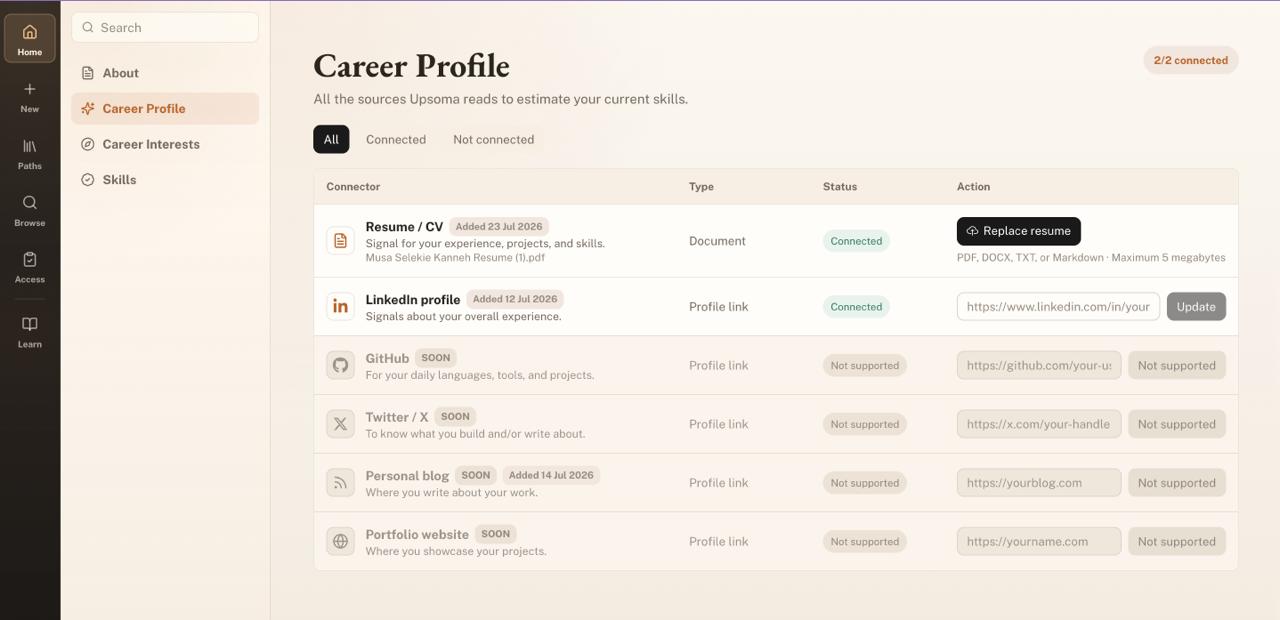
Together, your bio, resume, and LinkedIn details make up the picture Upsoma uses to personalize your learning experience. The more complete it is, the more accurate your skill estimates and learning paths become.
Part 3 - Start learning
With your account created and your profile details added, you are ready for the best part: turning a goal into a personalized learning path. Open the learning onboarding page to use the learning composer.
For a full, step-by-step walkthrough of that, see our guide How to Create and Use Your First Upsoma Learning Path.
A few helpful tips
- Use an email you check often. Account updates are sent there.
- Coming back later? Click Log in (right next to "Get started"), using the same method you signed up with.
- Your profile is not one-and-done. Update your resume, links, and interests whenever things change, and Upsoma keeps adapting to your latest information.
Questions? We are here to help
Visit our Support page to browse answers to common questions or get additional support.